
Turbo Soccer Graphics and HUD Settings
Smooth frame time, a smaller HUD, and a pitch you can still read on phone or PC.
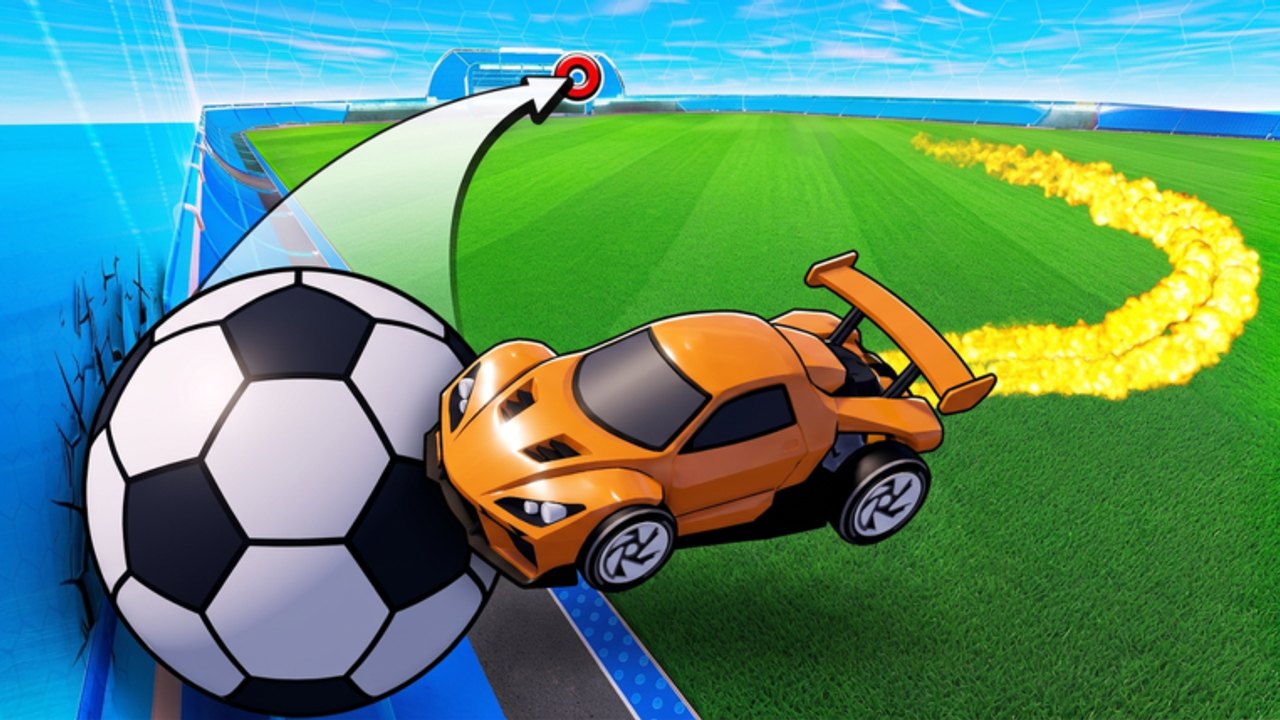
Turbo Soccer decides goals in fractions of a second. A pretty stadium that drops frames on kickoff costs more MMR than an ugly one that stays smooth. Creator tip videos from October 2026 tell new players to set Graphics Mode to Max performance, shrink the interface, and only then chase cosmetic camera flair. This page is the graphics and HUD pass for Season 1 on Roblox.
Pair it with camera settings so FOV and presets match the cleaner HUD. Bind checks stay on controls. If you still cannot see the ball after both pages, the problem is usually Ball Cam or boost timing, not another shadow slider.
Max performance first
Open Settings from the lobby. Find Graphics Mode (wording can read Performance, Max performance, or similar after a patch).
- Set the mode to the highest performance option available.
- Restart the experience if the client asks you to.
- Play one Free Play kickoff and watch the ball on first contact. If it stutters, drop any remaining quality toggles (shadows, bloom, reflections) before you blame the netcode.
ItzVexo’s tips segment explicitly recommends maximum performance when players feel stutters, then reducing menu and HUD size. That order matters: frame time first, chrome second.
Low-end laptops and phones should stay on performance mode even if the stadium looks flat. Ranked does not grade your skybox.
Shrink the HUD and menus
Crowded UI covers the ball on mobile and on ultrawide PC layouts. In the interface options:
- Lower menu size so Shop and Gift panels do not eat half the screen when you tab out mid-queue thoughts.
- Lower in-game HUD size so boost bars and scoreboards sit away from the ball’s usual flight path.
- Lower minimap size and minimap opacity until you can still glance at it without losing the ball in the corner of the eye.
You still need the score and the boost meter. You do not need a giant opaque map during a 1v1 aerial. Tune until Free Play feels quiet, then leave the sliders alone for a week.
FOV and clarity
FOV often lives next to camera presets. Community camera guides start near 110 for arena vision. Raising FOV without fixing performance just shows you more of a slideshow. Set Max performance, then raise FOV, then lock Competitive or Far as described on camera settings.
If the hood still hides soft dribbles, raise FOV slightly or switch to Far before you buy a new car. Hitbox problems belong on the cars ranking; visibility problems belong here.
Mobile-specific cleanup
On-screen sticks and buttons cover more pitch than a mouse setup. After you pick performance mode:
- Shrink HUD and minimap aggressively.
- Move jump and boost so one thumb cannot mash both — details on controls.
- Keep Ball Cam on so you are not also dragging the camera with a third finger.
- Play in landscape with notifications disabled for the session.
Mobile can climb ranks. It cannot climb ranks while a chat banner covers the landing ring described on ball control.
Console notes
Compatible controllers follow the same graphics menu. Prefer performance mode on shared living-room TVs where motion clarity beats 4K flourishes. Confirm Ball Cam on Y (or your rebound) after every Season 1 patch that resets settings.
A five-minute settings checklist
- Graphics Mode → Max performance.
- Shadows / bloom / reflections → low or off if frames dip.
- Menu, HUD, minimap → smaller and less opaque.
- Camera preset → Competitive or Far; Ball Cam on; Follow Nose off.
- One Free Play minute of kickoffs. If the ball ghosts on contact, drop quality again before you queue.
Then redeem anything new on codes, claim daily Gift items from the garage hub, and warm up with minigames or the practice checklist. Settings are a once-per-patch chore. Matches are the daily work.
When settings are not the problem
If frames are fine and you still whiff, stop tuning. Open how to score or kickoffs. A perfect HUD does not aim the ball. It only stops the client from lying about where the ball was when you pressed jump.
Frequently Asked Questions
Quick answers to the most common Turbo Soccer questions.
What graphics mode should I use in Turbo Soccer?
Max performance (or the highest performance option in Settings). Smooth frame time matters more than stadium detail in ranked.
Why shrink the HUD?
Large menus and minimaps cover the ball, especially on mobile. Smaller HUD and lower minimap opacity keep the pitch readable.
Does FOV replace a camera preset?
No. Set performance mode, pick Competitive or Far, then raise FOV toward community values around 110. See camera settings.
My ball still stutters after Max performance. What next?
Drop shadows and other quality toggles, close background apps, and test in Free Play. If only ranked stutters, the server load is the remaining suspect.