
Turbo Soccer Camera Settings and Ball Cam
Pull the view back, lock Ball Cam, and stop losing the ball off the edge of the screen.
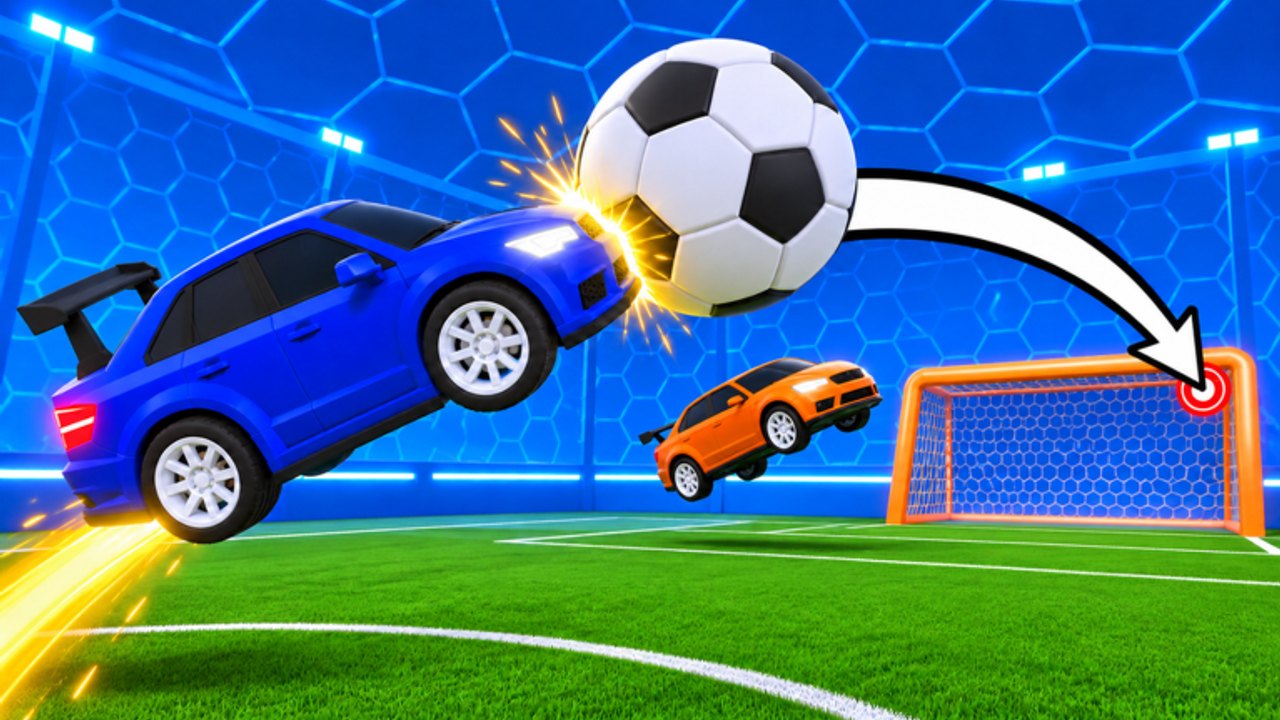
Default camera in Turbo Soccer sits too close to the hood. You see your own boost trail and miss the far post. Creator guides and tip write-ups from October 2026 agree on the same first fix: open Settings, switch the preset to Competitive or Far, turn Ball Cam on, then fine-tune the sliders if you still clip the ball under the car. This page is that settings visit, written for Season 1 on Roblox.
If you have not finished the tutorial yet, do that first on getting started. Bind labels for Space, mouse, and controller live on controls. Aerials that still feel late after a camera change belong on aerials and boost.
Presets that actually help
Open the in-game Settings menu from the lobby or mid-match pause. Find the camera section.
- Competitive — zoomed-out preset most tip videos recommend first. It keeps the ball, both nets, and nearby cars in frame during midfield fights.
- Far — pulls the view even farther. ItzVexo’s October 2026 tips video calls this “away” mode and prefers it for reading the whole pitch.
- Default / close presets — fine for the tutorial, poor for ranked. Switch before your first Casual queue.
Pick one preset and play three matches before you touch every slider. A preset change alone fixes more missed saves than a five-minute FOV debate.
Ball Cam on by default
Ball Cam locks the view toward the ball. On PC the tutorial key table lists it on Space. Controllers usually map it to Y. Mobile uses an on-screen toggle.
Leave it on for challenges, aerials, and kickoffs. It feels wrong for the first two games because the car rotates under a locked ball, then it becomes the only way to track a bounce without guessing. Practise toggling on purpose in Free Play: thirty seconds Ball Cam on, thirty seconds car cam, so a panic toggle mid-save is intentional.
Car cam still helps when you line up a wall read or recover from a weird landing. Do not live in car cam for whole ranked games.
Community slider starting points
Independent camera guides for Turbo Soccer converge on values like these. Treat them as a tested starting point, not an official config sheet — confirm the live labels in your client after each Season 1 patch.
| Slider | Community start | What it changes |
|---|---|---|
| Field of View (FOV) | ~110 | Widens arena vision so teammates and challenges appear earlier |
| Distance | ~270 | Pulls the camera back around the car |
| Height | ~100 | Raises the view over the ball without losing ground reads |
| Angle | about -3 | Tilts slightly down for cleaner bumper-to-ball contact |
| Swiftness / Stiffness | about +3.5 | Keeps the camera firm through fast turns |
| Swivel Speed | about +40 | Speeds manual pan on stick or mouse |
| Transition Speed | about -10 | Softens the blend when you swap Ball Cam and car cam |
FOV near 110 closes blind spots in 3v3 midfield scrums. Distance near 270 with height near 100 stops the car body from covering a high lob when you sit underneath it.
Aerial toggles that fight you
Two switches matter once you leave the ground:
- Camera Follows the Nose in the Air — Off. When this stays on, a backward tilt on takeoff drags the camera into the turf and hides the ball. Off keeps the horizon level so you time flips off the car’s real rotation.
- Camera Shake — Off. Shake adds noise during boost and demos. Turn it off so contact timing stays readable.
Leave Invert Vertical Swivel off unless you already play flight sims that way. After you change these, run the eight-minute Free Play block on aerials and boost before you judge the new view in ranked.
Graphics next to camera
Camera settings do not fix a stuttering frame time. Tip guides tell players to set Graphics Mode to Max performance when the ball stutters on contact, then shrink menu, HUD, and minimap size so the pitch stays clear. Full steps live on graphics and HUD. A smooth 60-plus FPS with a Far camera beats a pretty stadium you cannot track.
Drill that locks the settings
- Set Competitive or Far, Ball Cam on, Follow Nose off, Shake off.
- Free Play for five minutes: chase soft bounces without looking at the scoreboard.
- Toggle Ball Cam every other kickoff so both views stay familiar.
- Queue one Casual 1v1. If the ball still leaves the screen on the first aerial, raise Distance another notch before you blame the flip.
When the camera finally feels boring, you are ready. Boring cameras win more kickoffs than cinematic ones. Pair the view with how to score ground shots and the ranked climb rotation rules so the extra vision turns into goals instead of ball-chasing.
Frequently Asked Questions
Quick answers to the most common Turbo Soccer questions.
What is the best Turbo Soccer camera preset?
Start with Competitive or Far. Both pull the view back so you can see the ball and both nets. Confirm in Settings after each patch.
Should Ball Cam stay on?
Yes for most play. Space toggles it on PC. Practise with it on in Free Play until aerials stop disappearing off-screen.
Why does the camera dive into the ground on aerials?
Turn Camera Follows the Nose in the Air off. That toggle pitches the view into the turf when you tilt backward on takeoff.
Do camera settings work on mobile?
Yes. Open Settings, pick a farther preset, keep Ball Cam on, and shrink the HUD if thumbs cover the ball. See also controls.